> For the complete documentation index, see [llms.txt](https://apidocs.arionbanki.is/llms.txt). Markdown versions of documentation pages are available by appending `.md` to page URLs; this page is available as [Markdown](https://apidocs.arionbanki.is/b2b-2013-schema/b2b-services/b2b-claims-service/relationship-with-online-bank.md).
# Relationship with online bank
### The online bank
In the Arion online bank interface, legal entities can perform various actions regarding claims. Claims that are created in the B2B claims service will appear in the online bank interface instantly. If users are using an accounting system that has a B2B connection with the bank to create and alter claims, users are advised to not perform these actions in the online bank interface as the result of those actions might not be returned to the accounting system. Users can however view claims and claim batches in the interface to validate that the actions made through the B2B claims service were successful.
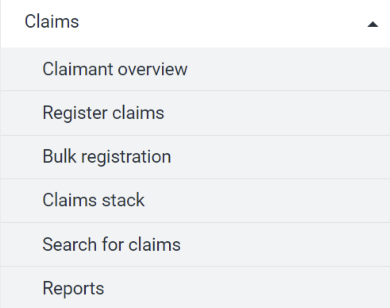
Dropdown menu for claims in the Arion online banking interface
### Claim batches
In the Arion online bank, a user can view the batches they have created, whether they were created through the B2B web service or directly within the online bank interface. Users can search for claim batches by creditor identification, batch status, batch name, or a reference time frame for when the batch was registered, sent, or responded to.
The search results are displayed below the search interface and provide the following details:
* Batch name
* Batch status
* Number of claims in the batch
* Registration date
* Date the batch was sent to RB
* Date of the response from RB
* Total amount of the batch
* Batch actions:
* Users can book a batch by clicking the button on the right-hand side.
* Users can view the claims in the batch by clicking the button on the right-hand side.
* Once the batch has been booked, users can view the response results from RB by clicking the button on the right-hand side. The response results indicate whether the claim creation was successful and whether a payment slip should be printed for the claim. The response file can be imported into an accounting system after the claims have been created through bulk registration. If the batch was created through the B2B web service, the accounting system can call a web service to retrieve information about claim batches.
* A file is marked with a letter:
* `Q` if the claim is paperless, i.e., no payment slip should be printed.
* `P` if a payment slip should be printed for the claim.
* `V` if the claim encountered an error.
### Search for claims
To identify individual claims within a batch, the user selects the "Search for Claims" option in the menu on the left-hand side of the web tree.
Users can search using one or more of the following criteria:
* Identifier (search for a single identifier or all identifiers)
* Payer’s name (this field can be left blank to search by ID number or for all payers)
* Payer’s ID number (this field can also be left blank to search for all payers)
* Claim number (this field does not need to be filled in)
* Claim status (search for all claims, unpaid or partially paid claims, paid claims, canceled claims, registered claims, claims in intermediary collection, or claims in legal collection)
* Reference time frame for due date, final due date, payment date, registration date, date the claim was sent for intermediary collection, booking date with RB, payment date, or cancellation date.
For all search criteria, if no value is selected or entered, the search includes all relevant values (e.g., if the payer’s name field is left blank, all names are searched).
The search results are displayed in a list below.
The list shows the payer’s name and ID number, as well as details about the claim number, due date, final due date, amount, currency, and payment status of the claim (unbooked, canceled, unpaid, paid, overdue, in secondary collection, or in legal collection). Users can perform actions for individual claims by clicking the button on the right-hand side. Actions available to users are, to book claim, reactivate claim, edit claim or cancel claim.